
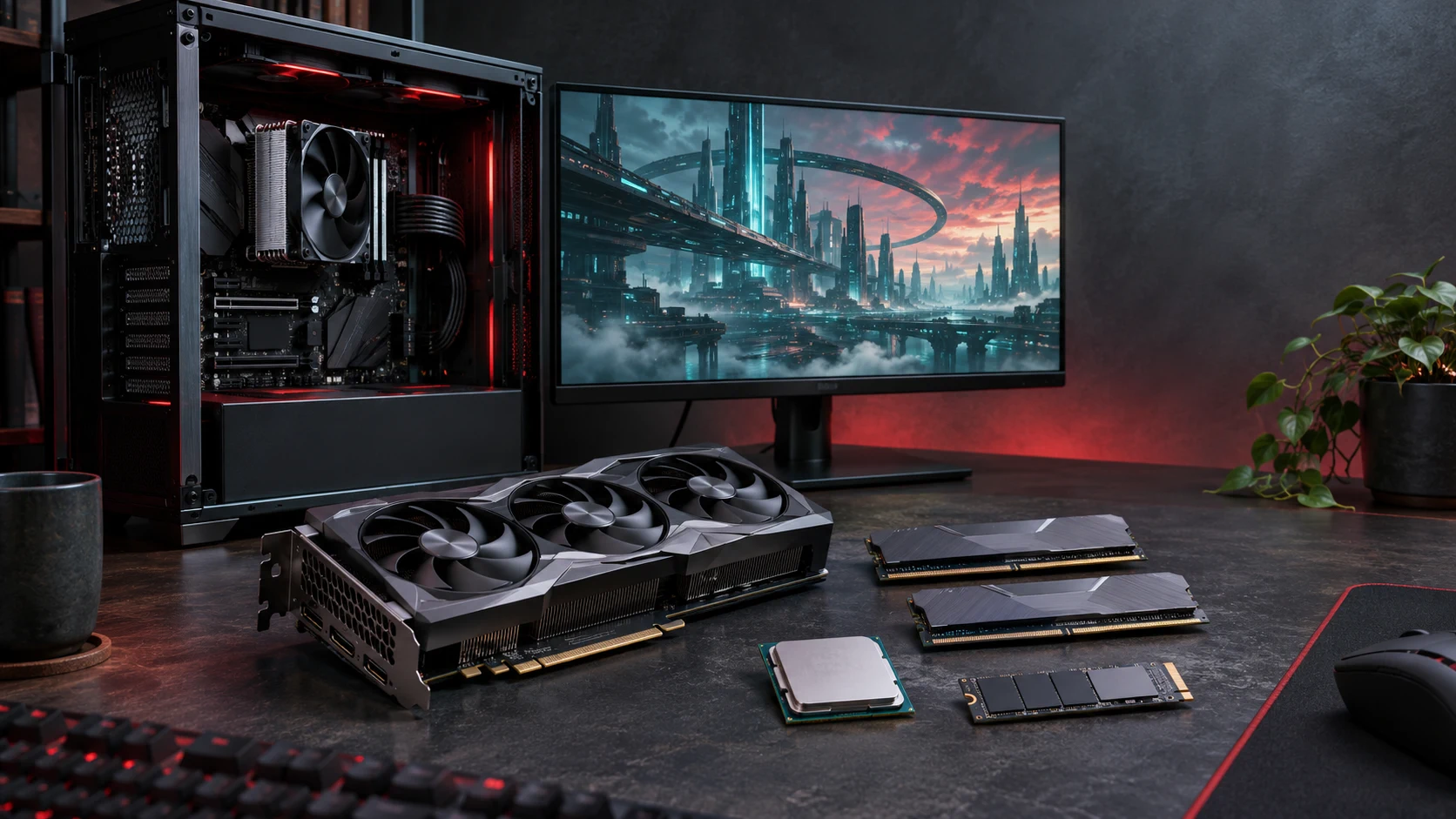
If your PC meets the published minimum specification, Zenless Zone Zero has a supported starting point on Windows. That is not a promise of identical performance in every scene or update. Check the official requirements for the route you plan to use, confirm free space on the actual install drive, and treat optional DX12 features as separate hardware checks rather than part of the minimum requirement.
For download routes, account choices, and what to do after installation, use our Zenless Zone Zero PC onboarding guide. For the gameplay systems you will meet once the game is running, see the beginner combat guide. This page is only about PC compatibility, storage, and documented graphics options.
The current PC requirements at a glance
HoYoverse's support page publishes a PC minimum specification. Steam publishes both a minimum and a recommended specification. The two sources agree on the core minimum CPU, memory, and GPU, but they describe DirectX and storage differently.
Official sources: HoYoverse PC minimum requirements · Steam system requirements
| Component | HoYoverse PC minimum | Steam minimum | Steam recommended |
|---|---|---|---|
| Operating system | Windows 10 64-bit or later | Windows 10 64-bit | Windows 10 64-bit |
| Processor | Intel Core i5, 7th generation, or AMD equivalent | Intel Core i5, 7th generation | Intel Core i7, 10th generation |
| Memory | 8 GB RAM | 8 GB RAM | 8 GB RAM |
| Graphics | NVIDIA GeForce GTX 970 or similar | GeForce GTX 970 | GeForce GTX 1660 |
| DirectX | 11.1 or later | Version 11 | Version 11 |
| Storage | 57 GB for the game; another 58 GB during unpacking | 75 GB available space | 75 GB available space |
| Drive note | Not specified on this page | HDD supported; SSD recommended | HDD supported; SSD recommended |
The wording matters. Steam's 75 GB is its storefront requirement for available space. HoYoverse separately states a game size and an additional unpacking requirement. Do not add those two HoYoverse figures and present the result as one guaranteed number for every launcher, update, or drive. Before installing, check the free space on the selected drive and follow the current launcher or Steam prompt if it differs from this guide.
Can your PC run it? Use this five-part check
Open Task Manager > Performance to identify the CPU, memory, GPU, and installed drives. Use File Explorer > This PC to check free space on the drive you plan to use. Settings > System > About shows the installed Windows version. Compare what you see with the relevant official column above.
- Windows: The published baseline is 64-bit Windows 10 or later. Do not treat a different operating system as supported just because the game might launch there.
- Processor: Compare the model family with the published Intel Core i5 7th-generation baseline or an AMD equivalent. The official source does not supply a complete equivalence chart, so avoid guessing from a product name alone.
- Memory: Confirm that Windows reports at least 8 GB RAM. The Steam recommended line still lists 8 GB; it does not publish a higher recommended memory figure.
- Graphics: Identify the actual GPU, not only the name of the laptop or desktop. GTX 970 is the published minimum reference; GTX 1660 is Steam's recommended reference.
- Storage: Check free space on the drive selected in your chosen client, not only total disk capacity. An almost-full system drive and a second drive with room are different installation situations.
If one of these checks is below the official minimum, the safe conclusion is not that the game will never open. It is that GamerPixel cannot call the configuration supported or predict its performance. Use the official source and current launcher prompt before committing a large download.
Why HoYoPlay and Steam show different storage numbers
The storage difference is a practical planning issue, not evidence that one storefront is wrong.
- HoYoverse support: 57 GB for the game and an additional 58 GB during unpacking.
- Steam: 75 GB available space for both its minimum and recommended entries.
The first statement distinguishes the installed game from a temporary unpacking stage. The second is a storefront free-space requirement. They are not written in the same format, so they should not be compared as if they describe the same instant in the installation process.
Choose the route you intend to use, select the target drive, and check its current free space immediately before the download. Leave room for the client to complete its own unpacking or update work. If an update later asks for more space, follow the current official prompt rather than an old screenshot or a fixed storage estimate.
DirectX 11 baseline and optional DX12 mode
Official source: Zenless Zone Zero PC Visual Experience Upgrade FAQ
The minimum listings do not require DX12: HoYoverse states DirectX 11.1 or later, while Steam states DirectX 11. HoYoverse also documents an optional DX12 launcher mode for specific graphics hardware.
According to the official PC Visual Experience Upgrade FAQ, DX12 mode is available for:
- NVIDIA 20 Series or later GPUs that include RT Cores.
- AMD Radeon RX 7000 Series or RX 9000 Series GPUs.
Eligible systems show a DX12 activation option below the launcher's Start Game button. The same FAQ says you can clear that option to return to the more compatible DX11 mode. A first DX12 launch can start shader compilation; HoYoverse says to let that process complete and to use the launcher Repair Tool if it is interrupted.
This is a compatibility feature, not a benchmark result. The official documentation does not let this guide promise a particular frame rate, loading time, or visual improvement for a given PC.
Which advanced graphics features are officially documented?
Official source: Zenless Zone Zero PC Visual Experience Upgrade FAQ
Version 3.0 introduced PC visual upgrades including global-illumination changes, ray tracing, Super Resolution, and Frame Generation. These features have their own eligibility rules; meeting the GTX 970 minimum does not establish support for them.
Ray tracing
HoYoverse states that PC ray tracing requires an NVIDIA 20 Series or later GPU with RT Cores and at least 8 GB of VRAM. The FAQ gives separate recommended VRAM levels for 1080p, 1440p, and 4K, but those are recommendations for the ray-tracing feature—not general requirements for starting the game. It also says ray tracing currently applies in city scenes and selected combat scenes, reverting to the default global illumination elsewhere.
If your hardware is eligible, the documented path is Options > Graphics > Advanced > Ray Tracing. The FAQ recommends pairing ray tracing with DLSS or FSR Super Resolution, but that is not a guarantee of smooth performance on every supported GPU.
Super Resolution and Frame Generation
The official FAQ lists these support ranges:
| Feature | Documented hardware support |
|---|---|
| DLSS and FSR3 Super Resolution | NVIDIA 20 Series or later GPUs with RT Cores |
| FSR4 Super Resolution | AMD Radeon RX 7000 or RX 9000 Series |
| DLSS Frame Generation | NVIDIA 40 Series or later |
| DLSS Multi-Frame Generation | NVIDIA 50 Series, with the stated NVIDIA driver requirement |
| FSR3 Frame Generation | NVIDIA 20 Series or later GPUs with RT Cores |
| FSR4 Frame Generation | AMD Radeon RX 7000 or RX 9000 Series; Windows 11 required |
The documented in-game paths are Options > Display > Advanced > Super Resolution and Options > Graphics > Advanced > Frame Generation. HoYoverse also says Frame Generation requires Hardware-Accelerated GPU Scheduling to be enabled in Windows, followed by a PC restart. Feature support and the right settings can change with updates, so recheck the FAQ before changing drivers or Windows settings solely for this game.
If your PC is below the minimum or short on space
Do the smallest useful check first:
- If storage is the problem, free space on the intended drive or choose another drive offered by the official client. Do not move or delete system files just to meet a number in a guide.
- If the GPU, CPU, or Windows version is below the published baseline, do not rely on an unsupported settings recipe. The official specifications define the supported reference point; they do not guarantee a workaround below it.
- If a supported PC has a visual issue after a graphics-mode change, use the documented DX11 fallback or the launcher Repair Tool before assuming that a third-party tweak is necessary.
The official FAQ also notes that support is expanding for some graphics hardware. That is a reason to check the latest official page after a major update, not a reason to assume an unlisted GPU is now supported.
Frequently asked questions
Is 8 GB of RAM enough for Zenless Zone Zero on PC?
Both current official sources list 8 GB RAM for the published minimum, and Steam also lists 8 GB in its recommended row. This does not promise that every PC with 8 GB will behave identically; CPU, GPU, drive space, background software, and the current client can still matter.
Do I need an SSD?
Steam says an HDD is supported and an SSD is recommended. It does not publish a loading-time comparison, so this guide does not claim a measured benefit.
Is DirectX 12 required?
No. The minimum listings are built around DirectX 11/11.1 or later. DX12 is an optional launcher mode for the hardware documented in HoYoverse's FAQ.
How much free space should I have?
Use the current prompt for the route you choose. Steam lists 75 GB available space; HoYoverse lists 57 GB for the game plus a separate 58 GB unpacking figure. The two listings serve different purposes, so leave practical headroom rather than treating either number as a universal installed-size prediction.
Check the official page before you download
Start with the official HoYoverse support page and the storefront you plan to use, then compare your Windows version, CPU, RAM, GPU, and target drive. If you qualify only for the base specification, begin with the default compatible mode. Treat DX12, ray tracing, Super Resolution, and Frame Generation as optional checks with their own published conditions—not as requirements for playing the game.